- Eintrag
- 04
- Aktualisiert
- 3. Okt. 2026
- Sprache
- Englisch, noch nicht übersetzt
Diese Seite ist noch nicht übersetzt und wird deshalb auf Englisch angezeigt.
Sample Analysis
The following instructions are only based on OC2-Praktikum.
1. Click Add product
- Enter a customised batch name specific to the fraction of your sample (e.g. Sandmeyer, first fraction = "SM-Fr1").
- A pop-up window would prompt you to specify the molecule for this product, which is already standing in your scheme (chemical editor). Information about the molecule such as the molecular formula, molecular weight and the theoretical yield would be generated automatically. Your product has by default 100% purity.
- You may now enter
gand the yielding would be calculated automatically. If you have collected different fractions of products and side products, you may specify them inkindnext to theoretical yield.
2. Click view 
Now you should land on the sample page. Alternatively you may access each specifc sample page through double clicking the sample on the Home page, or through selecting the sample and clicking the "Open/edit sample" tile.
The following information mainly targets OC2-Praktikum.
Overview Overview of general information of your sample
The "Title" of your sample can be any customised name and can be edited in any of the following tabs.The overview of general information such as the molecular formula and molecular weight, IR and NMR data etc. can be printed as PDF here. A barcode is automatically generated specifcally to this sample.
StockStock information about the sample (e.g. location).
Safety GHS, H- & P-statements
Safety information that was imported into the reagent table in ELN is not synchronized here, since this page is designated for syntheses of customised schemes in researches. If necessary you may add your GHS, H- and P-statements here manually.Physical Entries of the physical properties of your sample
- bp [°C] , mp [°C]: boiling point and melting point. Add the corresponding DOI for literature values, and add your own experimental value by clicking
 , remove with
- nd: refractive index
- [α]: optical activty / rotation
-
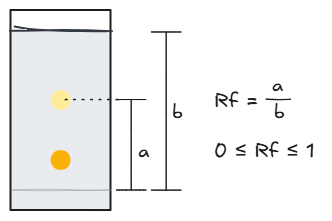
Rf: retention factor for thin-layer chromatorgraphy (TLC). The outer / for each TLC performed. The inner / for each solvent used.
Select the solvent used, the ratio of the solvent system (eluent), plate used, enter the measured distance the spot traveled in "low" and that of the eluent front in "high", then enter the calculated Rf in the empty field on the right.
SpectraOverview of attached spectra (e.g. IR, NMR, UV/Vis etc.) of your sample
Upon clicking any attached spectrum shown on the right you may view your spectrum here. For addition of spectra and data analysis, click the coloured dot on the top right corner of the tile to open the corresponding page.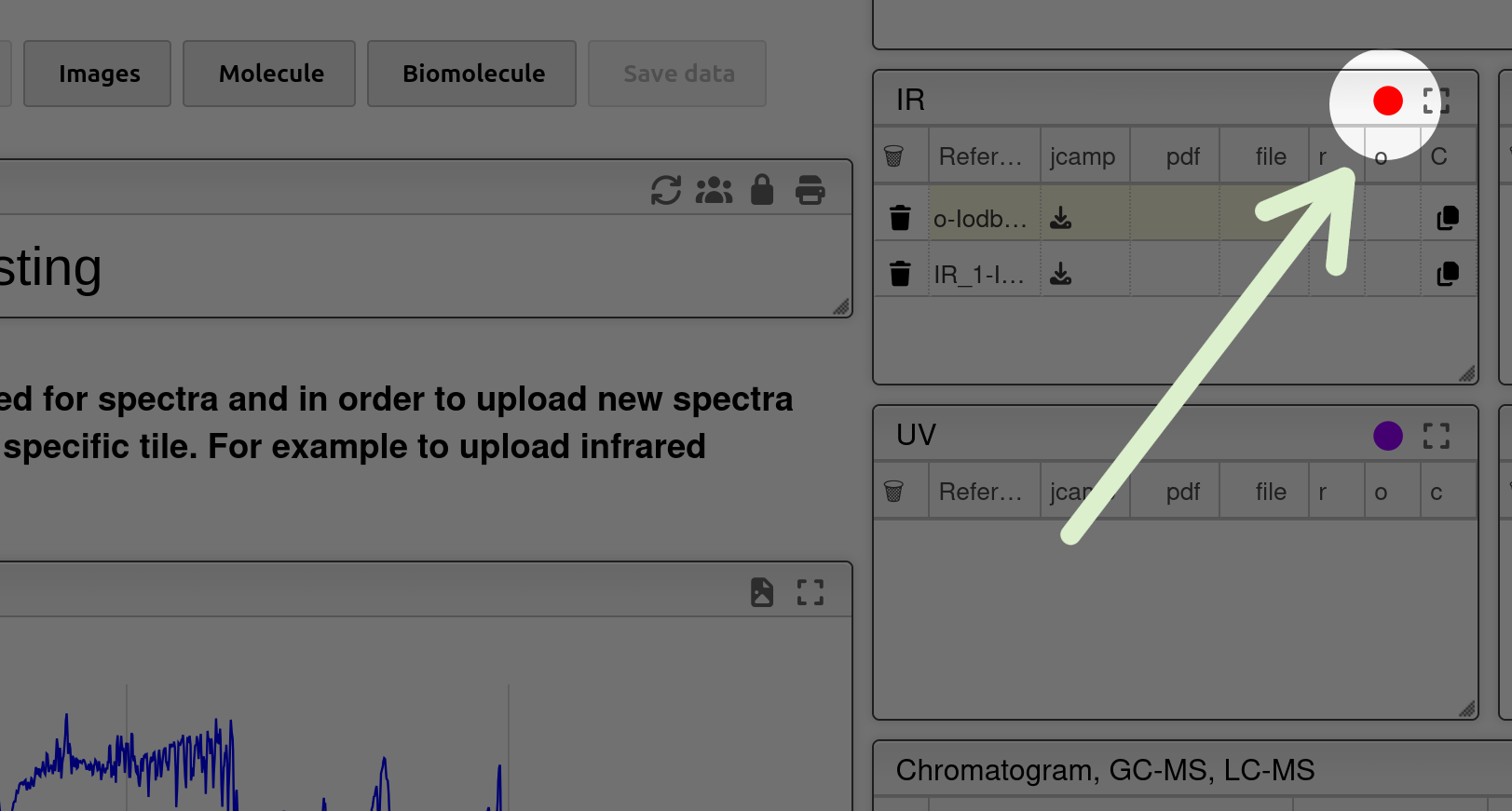
ImagesAttachment of images e.g. photos of your TLC.
Supported formats:.tiff, .png, .gif and .jpeg. For more information click here.
MoleculeChemical editor and identifier of the sample
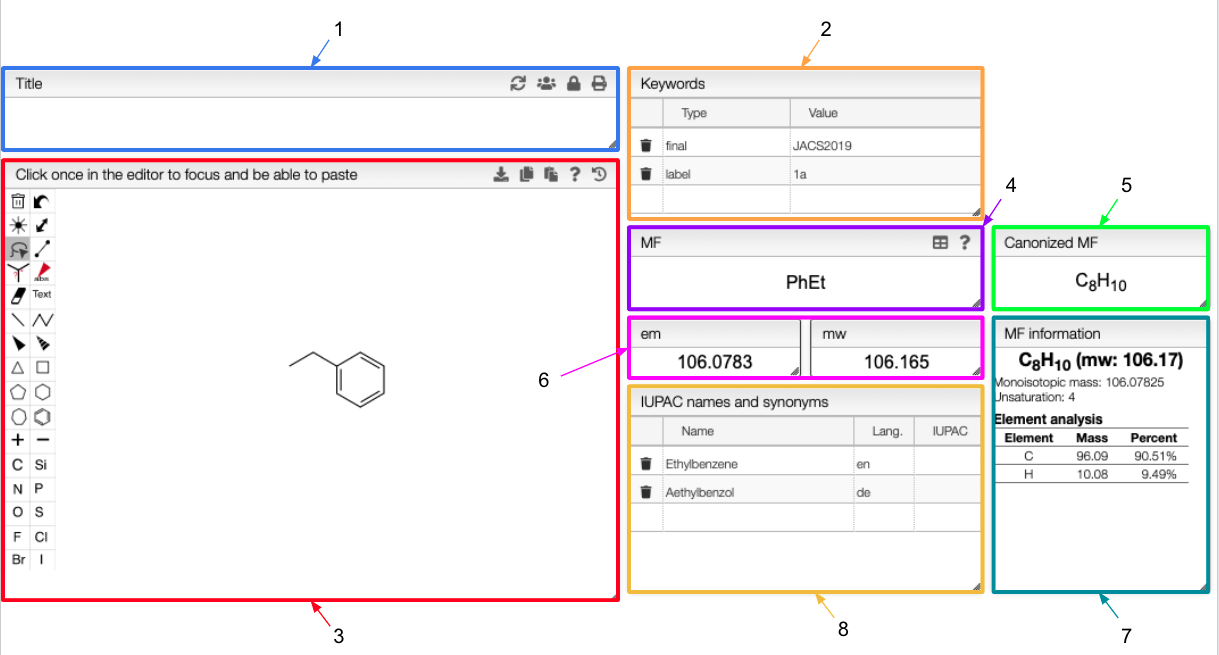
- If you write a title in this tab, it will be automatically updated in the `Title` tab of the over views and will appear in the final report. Click here for more information.
- The keywords appear in the main table of the homepage. You would be able to search for your sample in the homepage according to those keywords.
- If necessary you may edit the chemical structure of a specifc sample of yours here (e.g. E/Z diastereomers). The new molecular formula and molecular weight will be automatically calculated, and the structure will be updated in all views of this tile.
- If you change the molecular formula, the new one will appear in the report.
- The canonized molecular formula depends directly on the molecular formula. It is updated every time the molecular formula changes.
- Exact mass and molecular weight, calculated from the molecular formula.
- Information about the molecular formula: monoisotopic mass, unsaturation and element analysis.
- IUPAC names and synonyms. Different languages can be used and are specified according to the ISO country codes.
BiomoleculesRecords of peptidic or nucleic sequences for biochemical analysis.
3. Use your product in multi-step syntheses
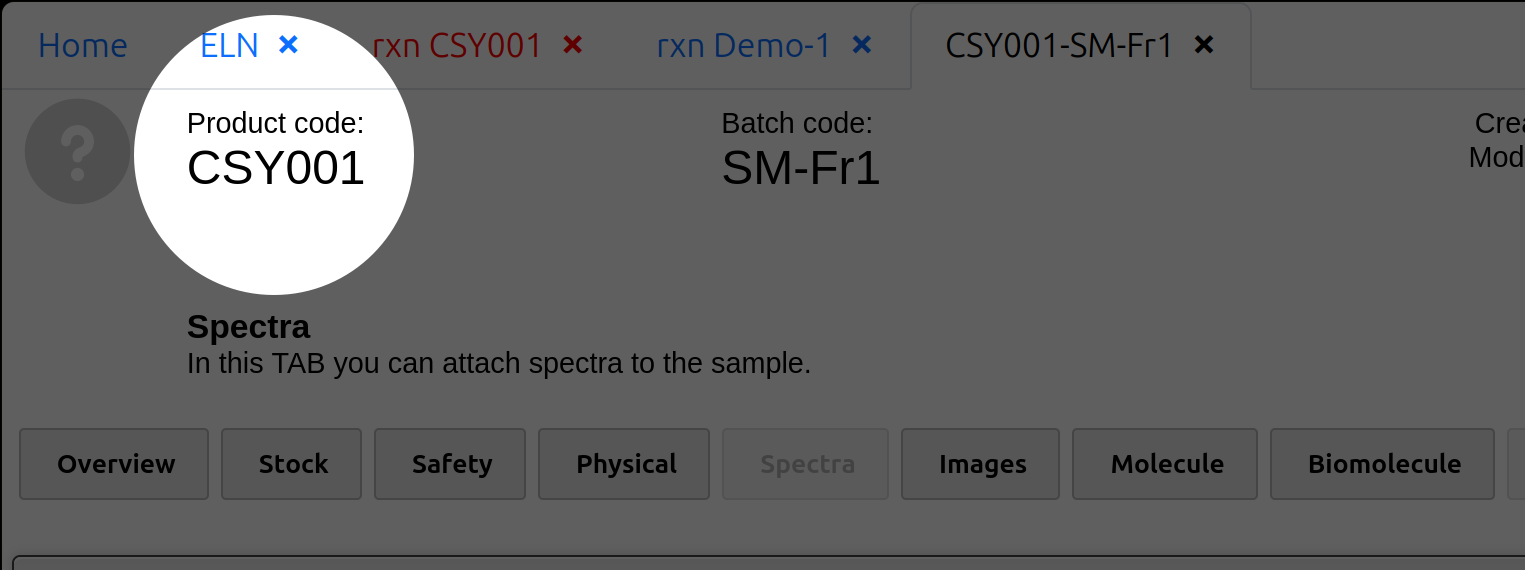
For a multi-step synthesis you may use the product code of your product in the previous synthesis in the next entry. You can find the product code on the top left corner on the sample page. See Option D in Method 1 on New Entry.
Can't I just create the product sample from the beginning and add it to my reaction scheme?
You can, but first you have to have the chemical structure in your scheme (aka. the chemical editor). Otherwise you are just creating an empty product sample and all the automatic calculations in the background would not run. Plus the reagent list is originally not designed for a backward calculation like we do in the Praktikum. The suggested workflow is actually more or less "exploiting" the features.Add product vs Add empty sample
Add productis designated for the product of your synthesis in this entry (thus you may specify if it is a crude or pure product).Add samplepractically can be used e.g. for a specific reagent of a specific batch in your synthesis. Therefore you may specify the relation between your sample and our proposed synthesis by clicking and selecting the corresponding chemical. The entry will then be shown in "Related samples".
Click here to learn more about management of sample information on the ELN.