How to start
1. Open your ELN Entry
Click  to open the ELN tab. Click
  and customize a reaction code to create a new entry. Beware that once entry is created it cannot be deleted and the reaction code cannot be modified. To hide the unwanted entries on the overview of ELN simply click
  in
in Hide column on the right.
2. Customize name of entry in 'Title'
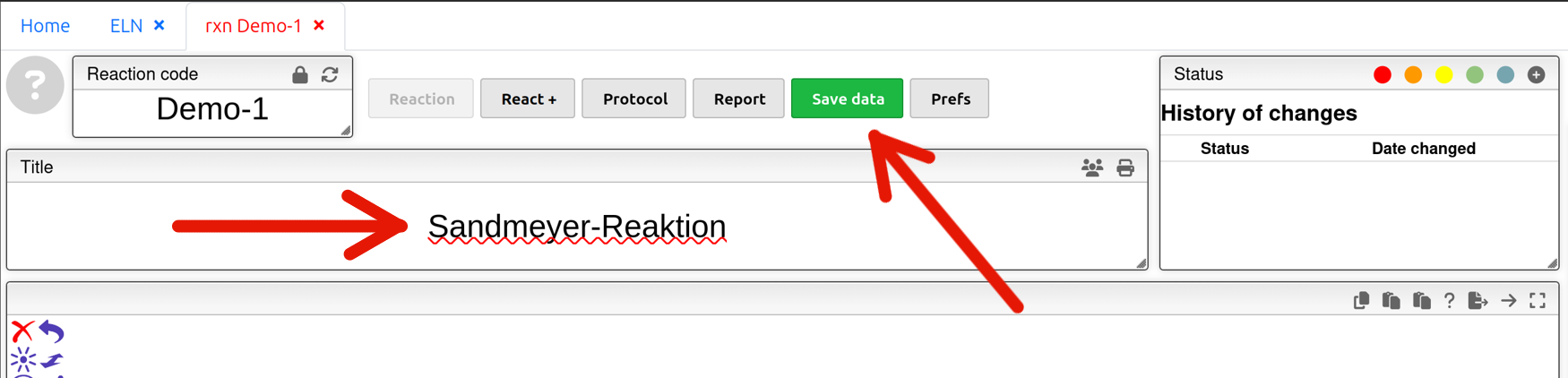
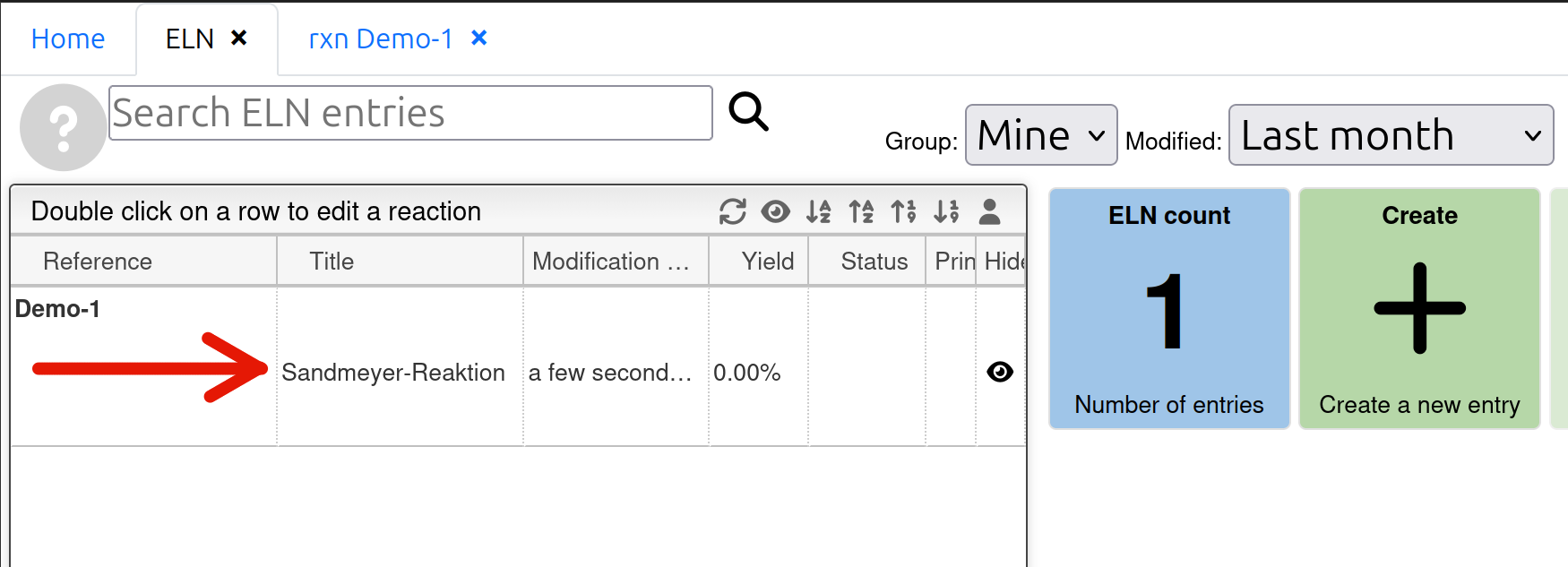
On the page of the ELN entry enter a title of your choice for the reaction and click  . From now on your entry would be automatically saved regularly. But it is still strongly recommended to save manually after each ammendment!
3. Add your reaction and reagents
Method 1 (recommended): First data entry then chemical equation
It saves your time from drawing chemical structures.
- The
codecolumn itself has search function embedded. You may search with:- (the first few characters of) the trivial name (e.g. with 'anthran' or in full 'anthranilic acid')
- the chemical formula (e.g. with 'KI', 'HCl').
- the CAS number (look up either on GESTIS (in German) or on CAS Sci Finder (in English, login with name@uni-jena.de required))
- the product code of a product you synthesized before
- Hit 'Enter' to search. In the pop-up window click the chemical of choice once to select. Usually the fields in
Name,mf(molecular formula),mw(molecular weight) anddensityare automatically filled up. Nevertheless for some molecules, of which relatively little literature are currently available, manual input might be required. - Click the to add the molecules into your chemical editor. Use the Lasso Pointer Tool
 in the toolbar (lasso as shown in video or hold 'Alt' and drag for retangular selection or double click a bond or an atom of the molecule) to rearrange the components in the chemical equation. Products stand on the right of the reaction arrow and are labeled with a e.g. 'P1' watermark.
 - Use the Cleanup Button
 to clean up the equation.
Method 2: First chemical equation then data entry
Click here for more information about the OpenChemLib chemical editor.
For those who are just looking for a Copy & Paste:
then
(left: reactant; right: product): across different entries.
: within the same editor
Or use the Lasso Pointer Tool
- Draw each chemical structure you need inside the chemical editor, or paste your chemical equation from e.g. ChemDraw or ChemSketch (if nothing happens, try "copy as SMILES" :) )
- Repeat Step 1 to 5 except 4 in Method 1
4. Calculation of the amounts of reagents required (Ansatztberechnung)
The following instructions are only based on OC2-Praktikum.
- If necessary, amend the purity and density.
Possible units for purity:
%, molarM(mmoles/mL), millimolarmMand loadingL(mmoles/g) - Enter the required amount of
mmolesormlorgof the reactants according to your script (Versuchsanleitung) and press 'Enter' to confirm. Cells ing,ml,mmolesandequivwould be automatically updated. If not, usually it is due to missing information of density or the material is in solid under standard condition. Sometimes manual input might be required. Left click for the next cell for next entry.Instead of left clicking the next cell, press 'Enter', then 'Tab' or 'Shift'+'Tab' to activate next cell for entry.
- Make sure your have the “Linked” checkbox on the right side checked.
The 'Theoretical yield' of produtcs on the right is calculated based on the starting materials with 1 equiv.
- Fill in the desired yielding of your product (e.g. in
g10 for liquid or 5 for solid compounds). The amount of reactants required would then be automatically updated.To delete and redo entries in
g,mlandmmolespress 'Delete' inside the cell inequiv. - Determine the kind of your reagents (starting materials, reactants...)
For solvents and wash solvent it is adviced to set the
equivto 1. - Click to save.
5. GHS Pictogramms, H- and P-statements
- Go to 'Prefs' at the top of the page.
- Check the box in 'Lookup for safety information' and 'Save Preference'. Return to 'Reaction' at the top of the page.
- Click through the cells in
Hazard Pictogramsto activate the lookup function. Symbols of i and appear automatically. - Click in each row to add the corresponding GHS labels. Manual editing (e.g. '6' for GHS 6 pictogram) is also possible.
- By clicking the information symbol i you may browse through the hazard and precaution statements (H- & P-Sätze) retrieved from PubChem. In the 'Experimental' tab you can find useful information of the chemical such as the boiling and meltling point.
7. Change status of the entry
Change the status of your ELN entry by clicking one of the buttons or customize your own label. Click afterwards. The history of changes cannot be modified.
Now your ELN is ready to use!